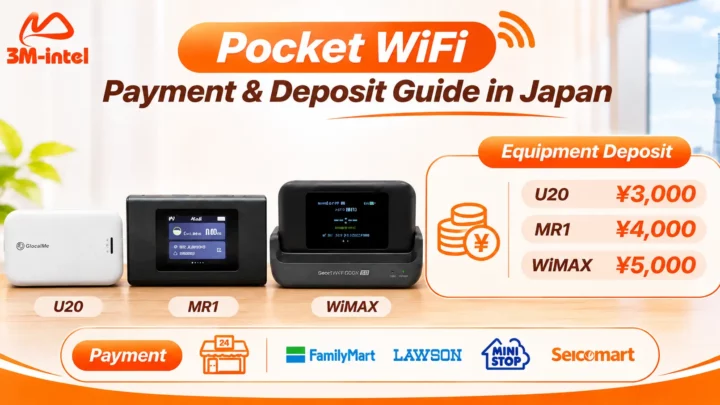

Is your Pocket WiFi slow or disconnected in Japan? Learn how to check signal strength, data usage, and troubleshoot connection issues with 3M INTEL.
Slow or disconnected Pocket WiFi in Japan can be caused by weak mobile signals, too many connected devices, exhausted data allowances, network congestion, or device issues. To fix the problem, start by checking your Pocket WiFi’s status, mobile signal, and data plan, then try reconnecting before contacting technical support.
A common situation is when your smartphone connects to WiFi but cannot access the internet. This does not necessarily mean that the Pocket WiFi device is broken.
3M INTEL (3Mintel株式会社) provides 100GB/month and Full Data Pocket WiFi services in Japan, along with setup and troubleshooting resources to help customers identify connection problems.
1. Why Is Your Pocket WiFi Slow or Not Working?
Pocket WiFi receives a connection from a mobile network and shares internet access with smartphones, laptops, and tablets.
Therefore, connection quality depends on mobile network coverage, the Pocket WiFi device, and the selected data plan.
| Possible Cause | Common Signs |
| Weak Mobile Signal | Slow internet in basements, elevators, or enclosed areas |
| Too Many Active Devices | Slower speeds during streaming, large downloads, or video meetings |
| Data Allowance Exhausted or Speed Restrictions | WiFi remains connected, but internet access becomes slow or unavailable |
| Mobile Network Congestion | Speeds decrease at certain locations or times |
| Low Battery or Device Issues | Pocket WiFi shuts down, freezes, or disconnects |
| Incorrect SSID or Password | Your phone cannot connect to the Pocket WiFi network |
Important: A strong WiFi signal on your smartphone only means it has a good wireless connection to the Pocket WiFi device. It does not guarantee that the device itself has an active internet connection.
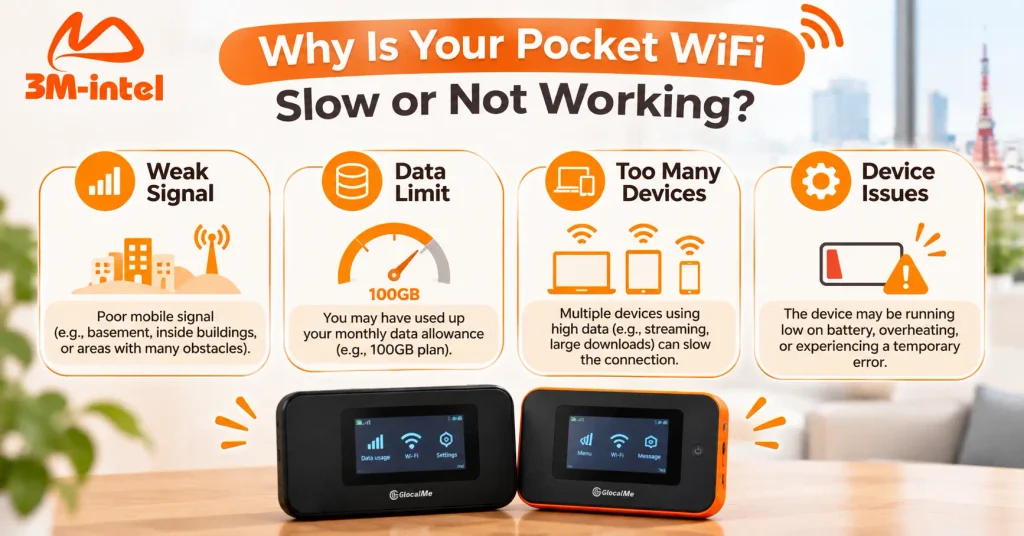
Four common causes of slow or disconnected Pocket WiFi in Japan include weak signals, reaching data limits, too many connected devices, and device issues.
2. Six Ways to Fix Slow or Disconnected Pocket WiFi
Try the following steps before requesting technical support.
Step 1: Check the Mobile Network Signal
Check the signal bars or connection status on your Pocket WiFi’s screen or indicator lights, depending on the model.
If the signal is weak, try moving the device closer to a window or into a more open area.
Mobile signals may be weaker in basements, buildings with thick walls, or locations with significant obstructions.
Step 2: Restart Your Pocket WiFi
If the device freezes or suddenly loses its connection, turn it off and back on according to the manufacturer’s instructions.
After restarting, allow the device to reconnect to the mobile network before testing internet access.
Do not use the Reset button to restore factory settings without guidance, as doing so may change important settings on your rental device.
Step 3: Check Your Data Usage and Plan Status
For 3M INTEL’s 100GB/month Pocket WiFi plan, customers should monitor their total data consumption during the billing cycle.
If the full 100GB allowance has been used, further internet access or speed conditions depend on the applicable plan policy.
For Full Data plans, customers should check any Fair Usage Policy (FUP) or speed restrictions that may apply.
If you cannot determine your remaining data allowance, contact 3M INTEL for guidance based on your plan and device.
Step 4: Reduce the Number of Active Devices
When several people stream videos, attend online meetings, or download large files simultaneously, internet speeds may decrease.
Temporarily disconnect devices that are not being used and test the connection again.
If performance improves, the issue may be related to simultaneous data usage or the device’s capacity.
Step 5: Check the WiFi Connection on Your Phone or Laptop
If your Pocket WiFi network does not appear, check whether the device is powered on and broadcasting WiFi.
If you receive an incorrect password message, verify the SSID and password shown on the device’s screen, label, or rental information.
If your device has saved an old password, select Forget This Network and reconnect using the current password.
Step 6: Check the Battery, Power Supply, and Device Temperature
Pocket WiFi may become unstable if the battery is low, the power supply has a problem, or the device overheats.
Check the battery level and use a charging cable suitable for the device model.
Keep the device in a ventilated area, away from direct sunlight, and avoid covering it while in use.
If the device becomes unusually hot, the battery appears swollen, or you notice unusual smells or visible damage, stop using it and contact support. Do not continue charging a device that shows signs of a safety problem.
3. How to Identify Different Pocket WiFi Connection Problems
Not every connection failure has the same cause.
| Problem | What to Check First |
| Your Phone Cannot Find the WiFi Network | Device power and WiFi broadcasting status |
| Incorrect Password Message | SSID, password, and saved connection details |
| Connected to WiFi but No Internet | Mobile signal, data allowance, and service status |
| Internet Is Slow in One Location | Network coverage and physical obstructions |
| Internet Slows Down With Multiple Devices | Simultaneous data usage |
| Pocket WiFi Frequently Turns Off | Battery, power supply, and device condition |
If possible, try connecting another smartphone to the same Pocket WiFi device.
If only one smartphone experiences the issue, check that phone’s WiFi settings.
If none of your devices can access the internet, the Pocket WiFi connection or service status may require further investigation.
Avoid changing APN settings, network configurations, or restoring factory settings unless you have instructions for your specific device model.
4. How Does 3M INTEL Support Pocket WiFi Troubleshooting?
3M INTEL provides 100GB and Full Data Pocket WiFi services in Japan, along with setup guides and support channels for customers experiencing connectivity issues.
Customers can access:
- Setup Guides: Instructions for setting up and connecting devices.
- Troubleshooting: Guidance for checking slow connections, disconnections, and other common problems.
- Customer Support: Official contact channels when basic troubleshooting does not resolve the issue.
What Information Should You Prepare Before Contacting Support?
To help the support team understand the problem, prepare:
- Your Pocket WiFi model, such as U20 or MR1.
- Your data plan: 100GB or Full Data.
- The area in Japan where the issue occurs.
- When the problem started and what happens.
- Photos of the device display or indicator lights, if available.
For example, you could explain:
“My MR1 Pocket WiFi is powered on, and my phone connects to its WiFi network, but I haven’t been able to access the internet since this morning. I’m currently using it in Tokyo, and I’ve already tried restarting the device.”
Providing specific details helps the support team identify the next troubleshooting steps without asking you to make unnecessary configuration changes.
Important: 3M INTEL provides guidance based on the reported issue and device conditions. Troubleshooting time and results depend on the cause, equipment, and network conditions.
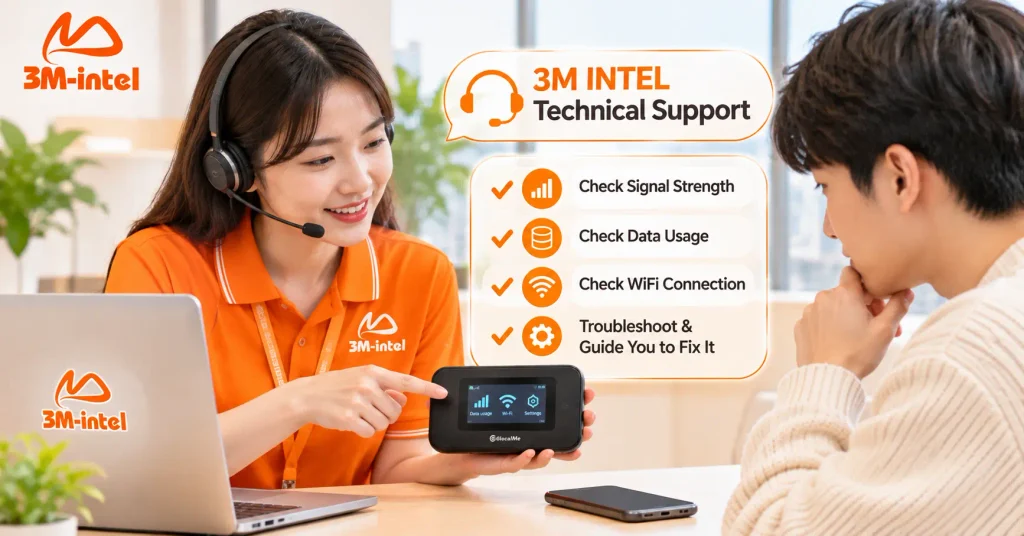
3M INTEL staff help customers check signal strength, data usage, and troubleshoot Pocket WiFi connection issues in Japan.
5. Frequently Asked Questions About Slow or Disconnected Pocket WiFi
Why Does My Pocket WiFi Show a Strong Signal but Have No Internet?
Your device may be broadcasting a WiFi network without successfully connecting to the mobile network. Other possible causes include exhausted data allowances or service issues.
Check the mobile signal, data usage, and connection status.
Does Slow Pocket WiFi at Night Mean the Device Is Broken?
Not necessarily.
Internet speeds may decrease during peak hours due to mobile network congestion. Try checking the connection at another time and compare the signal conditions before assuming the device is faulty.
Should I Reset My Pocket WiFi When It Loses Internet Access?
Try restarting the device first.
Do not restore factory settings without instructions, as this may erase or change the settings required for your connection.
Where Can 3M INTEL Customers Get Pocket WiFi Support?
Visit the official Troubleshooting page or contact 3M INTEL at info@3mintel.jp with your device model and a description of the problem.
6. Troubleshoot Pocket WiFi Problems With 3M INTEL
When your Pocket WiFi is slow or disconnected, start by checking mobile signal strength, data usage, active devices, and the condition of your Pocket WiFi before changing any settings.
With 100GB and Full Data Pocket WiFi options, 3M INTEL provides practical setup instructions and troubleshooting resources to help customers deal with common connection issues in Japan.
If you have already tried the basic steps but still cannot access the internet, contact 3M INTEL for guidance based on your device and service.
Contact 3M INTEL
- Website: https://3mintel.jp/
- Email: 3mintel.japan@gmail.com
- WiFi Services: https://3mintel.jp/
- Registration and Payment Information: https://3mintel.jp/
3M INTEL – Flexible Connectivity, Clear Guidance, and Support When You Need It.