
Learn how to check software versions and safely update firmware on screen-equipped Pocket WiFi devices in Japan with technical support from 3M INTEL.
To update the firmware on a Pocket WiFi device with a screen, first check the device model and current software version, confirm that an official update is available, ensure a stable power supply, and follow the instructions for your specific device. If you are renting Pocket WiFi from 3M INTEL, contact the support team before attempting a firmware update.
Firmware is the software built into a device that controls functions such as network connectivity, WiFi management, and system operation.
3M INTEL (3Mintel株式会社) provides Pocket WiFi solutions in Japan, including screen-equipped devices such as the MR1, along with setup guides and technical support resources.
Here is what you need to know to check and update your device’s firmware safely.
1. Why Should You Update Pocket WiFi Firmware?
Firmware controls the device’s hardware and core functions.
Depending on the update, new firmware released by the manufacturer may:
- Fix software bugs.
- Improve device compatibility.
- Add or adjust certain features.
- Address identified security issues.
- Improve stability under specific conditions.
However, not every slow or disconnected Pocket WiFi connection requires a firmware update.
The problem may be caused by mobile signal strength, data usage limits, network coverage, or temporary network conditions.
Before updating, check whether the issue is actually related to the device’s software.
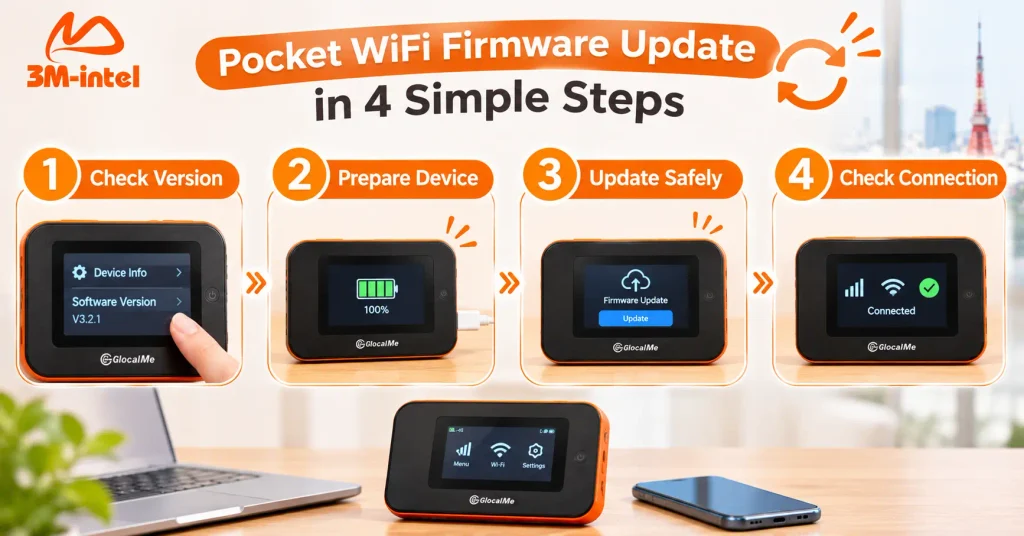
The Pocket WiFi firmware update process includes four steps: check the software version, prepare the device, update safely, and verify the connection.
2. How to Check the Software Version on Pocket WiFi With a Screen
Some Pocket WiFi devices with screens allow users to check device information and firmware versions directly.
For the MR1 or similar devices, you can begin with the following checks.
Step 1: Turn on the Pocket WiFi and wait for it to finish starting up.
Step 2: Open the settings or device information section on the screen, if supported.
Step 3: Look for an option such as Device Information, About, System Information, or Software Version.
Step 4: Write down the device model and current software version.
Menu names may vary depending on the device model and software version. These are general examples, not verified menu paths for every MR1 device.
If you cannot find the firmware information, contact 3M INTEL instead of changing unfamiliar system settings.
3. How to Update Pocket WiFi Firmware Safely
Before updating, confirm that the firmware is compatible with your device and that you are authorized to install it.
Step 1: Confirm the Firmware Update
Check for an official update notification on your device or information provided by the manufacturer or service provider.
If you are renting Pocket WiFi from 3M INTEL, confirm with customer support before proceeding.
Step 2: Prepare Your Device
Make sure the device has sufficient battery power or a stable power supply, is not overheating, and has a suitable internet connection if the update requires downloading files.
Keep in mind that downloading firmware through a mobile network may consume data from your plan.
Step 3: Follow the Official Update Instructions
If your model supports manual firmware updates and the procedure has been confirmed, use only the update function recommended by the manufacturer or 3M INTEL.
Some devices may update automatically, while others require model-specific steps.
Do not download or install firmware from unknown or unverified sources.
Step 4: Wait for the Update to Finish
During the update:
- Do not turn off the device.
- Do not disconnect the power supply during installation.
- Do not remove or interfere with internal components.
- Do not perform a factory reset.
Depending on the model, the device may restart automatically after the update.
Step 5: Check Your Connection After Updating
Once the device starts working again, check the WiFi network name (SSID), password, mobile network signal, and internet connection using a smartphone or laptop.
If an error appears, record the message shown on the screen and contact support.
4. Important Precautions When Updating a 3M INTEL Rental Pocket WiFi
Pocket WiFi devices provided by 3M INTEL are used under the rental and equipment conditions agreed upon during registration.
Customers should follow these precautions:
| Recommended | Avoid |
| Verify the exact device model | Installing firmware intended for another model |
| Confirm with 3M INTEL before updating | Downloading firmware from unverified websites |
| Ensure a stable power supply | Turning off the device during an update |
| Record the version and any error messages | Performing an unauthorized factory reset |
| Follow official instructions | Changing system settings without guidance |
Important: Do not update the firmware simply because you find a newer version online.
Two devices with similar commercial names may use different hardware or software configurations.
On rental devices, an incorrect firmware update may affect connectivity and complicate future equipment checks.
5. How Does 3M INTEL Support Pocket WiFi Software Checks?
3M INTEL provides Pocket WiFi services in Japan, along with setup instructions and official technical support channels.
If your screen-equipped Pocket WiFi displays an update notification or experiences problems after an update, contact the support team and provide:
- Device model, such as MR1.
- Current software version, if available.
- The notification or error message displayed.
- Internet connection status.
- A photo of the device screen, if possible.
This information helps 3M INTEL determine the appropriate checks and provide guidance on the next steps.
Customers can also visit the Setup Guides and Troubleshooting sections of the website for help with common connectivity issues.
Firmware update availability, procedures, and support options depend on the device model and its technical conditions.

3M INTEL staff help customers check software versions and safely update firmware on screen-equipped Pocket WiFi devices in Japan.
6. Frequently Asked Questions About Pocket WiFi Firmware Updates
Can Pocket WiFi With a Screen Update Its Software Automatically?
Some models support automatic firmware updates, while others require manual procedures. This depends on the device model and software version.
Should I Update the Firmware if My Pocket WiFi Is Working Normally?
Not necessarily. Check official update notifications and confirm with your provider, especially if the device is rented.
Will Updating the Firmware Remove My WiFi Password?
This depends on the device and type of update. Do not assume that all settings will remain unchanged. Check your SSID and password after the update is complete.
What Should I Do if a Firmware Update Fails?
Avoid repeatedly attempting the update or performing a factory reset without guidance. Record the error message and device model, then contact 3M INTEL for assistance.
7. Check and Update Pocket WiFi Firmware With 3M INTEL
Firmware updates may help maintain device functionality and resolve certain software issues, but they must be performed using the correct version and official instructions.
For screen-equipped Pocket WiFi devices such as the MR1 provided by 3M INTEL, customers should confirm update availability before proceeding to avoid affecting the device’s configuration or connectivity.
If you need help checking your software version or experience problems with your Pocket WiFi, contact 3M INTEL for guidance.
Contact 3M INTEL
- Website: https://3mintel.jp/
- Email: 3mintel.japan@gmail.com
- WiFi Services: https://3mintel.jp/
- Registration and Payment Information: https://3mintel.jp/
3M INTEL – Clear Instructions, Safe Device Usage, and Support When You Need It.