No home internet in Japan? Learn how to check NTT ONU and TP-Link router indicator lights, identify connection issues, and get support from 3M INTEL.
If your home internet suddenly stops working in Japan, check the indicator lights on your NTT ONU first, followed by your WiFi router. The power, optical line, Ethernet, and internet status lights can help you identify whether the problem may be related to the equipment, fiber connection, router configuration, or local WiFi network.
For customers using Home Internet services over NTT Hikari infrastructure, understanding these basic indicators can help identify potential issues before requesting technical support.
3M INTEL (3Mintel株式会社) provides Home Internet services using NTT Hikari infrastructure in Japan. This guide explains how to interpret common indicator lights on NTT ONU devices and TP-Link routers, along with safe troubleshooting steps when your internet connection is unavailable.
Note: Indicator names, colors, and blinking patterns may vary depending on the device model. Always refer to your specific equipment and the manufacturer’s instructions.
1. Should You Check the NTT ONU or the Router First?
In a typical fiber-optic internet setup using a standalone ONU, the connection follows this sequence:
NTT Fiber Line → NTT ONU → Ethernet Cable → TP-Link Router → Smartphones, Laptops, and TVs
Each device has a different function:
- NTT ONU: Receives the fiber-optic connection and converts it into an Ethernet connection.
- TP-Link Router: Provides WiFi, manages connected devices, and establishes internet access according to the service configuration.
For effective troubleshooting, check the connection in the following order:
- Is the ONU receiving power and detecting the fiber-optic connection?
- Is the ONU connected to the router through an Ethernet cable?
- Does the router have an active internet connection?
- Is your smartphone or laptop connected to the correct WiFi network?
This approach helps avoid unnecessary password changes or router resets when the actual problem may be related to the fiber connection.
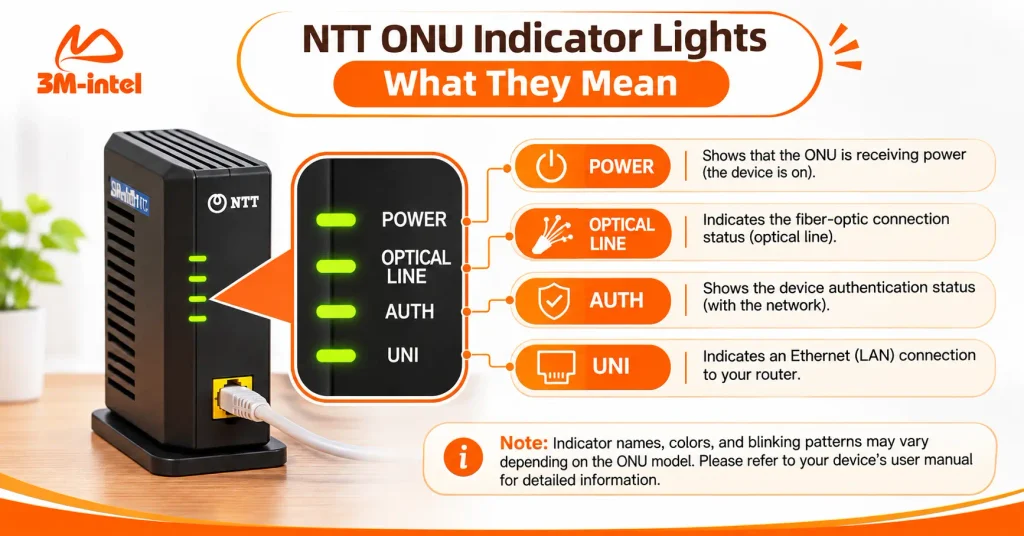
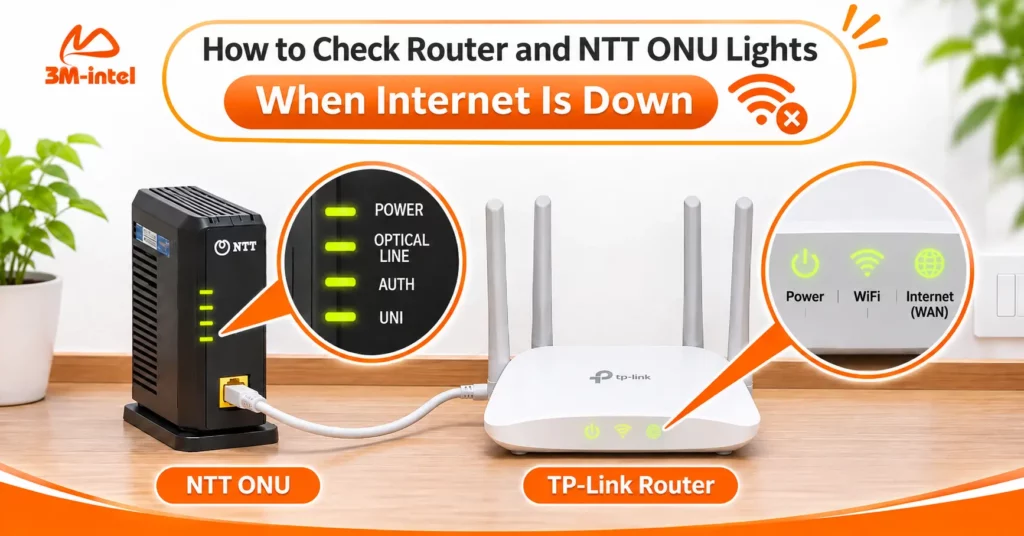
An overview of the four NTT ONU indicator lights—Power, Optical Line, AUTH, and UNI—to help users check the power supply, fiber connection, and Ethernet link.
2. Understanding the Indicator Lights on an NTT ONU
On some NTT ONU models, four common indicator lights are AUTH (認証), UNI, Optical Line (光回線), and Power (電源).
| Indicator | Common Normal Status | When to Check Further |
| Power / 電源 | Green: The device is receiving power | The light is off or shows a warning status after startup |
| Optical Line / 光回線 | Green: The optical connection is operating normally | The light remains off or displays an abnormal status |
| AUTH / 認証 | Green: The device is in its normal authentication state | The light remains off after startup |
| UNI | Solid or blinking green: An Ethernet connection is present | The light is off while the ONU and router are connected and powered on |
What Does It Mean if the Optical Line Light Is Off?
If the Optical Line indicator is off on a model where it should remain illuminated during normal operation, the issue may involve the fiber-optic connection.
Check whether the ONU is receiving power and visually inspect the fiber cable for obvious damage, excessive bending, or disconnection.
Do not remove optical connectors, open the ONU, or look directly into a fiber-optic connector.
If the indicator remains abnormal, contact your service provider to request a connection check.
Is a Blinking UNI Light a Problem?
Not necessarily. On many NTT ONU models, a blinking green UNI light indicates that data is being transmitted through the Ethernet connection.
However, if the UNI light remains off while both the ONU and router are powered on, check the Ethernet cable connecting the devices.
What if the AUTH or Power Light Looks Abnormal?
An AUTH indicator that remains off or a Power indicator showing a warning color may suggest that the ONU is not ready or is experiencing an issue.
However, some blinking patterns can occur during startup or firmware updates.
Always check the instructions for your specific ONU model before assuming that the device is faulty.
3. How to Check the Indicator Lights on a TP-Link Router
After checking the NTT ONU, examine the indicator lights on your TP-Link router.
| Indicator | Main Function | What to Check |
| Power | Shows whether the router is powered on | The light is off or displays an abnormal status |
| Internet / WAN | Indicates the internet connection status | The light displays a warning or the connection is unavailable |
| WiFi / 2.4GHz / 5GHz | Indicates wireless network operation | Your WiFi network name cannot be found |
| LAN | Indicates wired device connections | A connected computer cannot detect an Ethernet connection |
These indicators are general examples.
Some TP-Link models have separate lights for each function, while others use a single combined status indicator.
What Does an Orange Internet Light Mean on a TP-Link Router?
On certain TP-Link models, an orange Internet indicator may mean that the router cannot access the internet.
Possible causes include:
- The WAN connection is not operating correctly.
- The PPPoE login information is incorrect.
- The internet connection method is not configured properly.
- The upstream equipment or internet service is experiencing an issue.
If the ONU indicators appear normal but the router still has no internet connection, check the WAN cable and verify the internet settings with your provider.
Do not change PPPoE, IPoE, or IPv6 settings without first confirming which connection method your service uses.
Why Is the WiFi Light On but the Internet Not Working?
A working WiFi indicator usually means that the router’s wireless network is operating.
It does not guarantee that the router has an active internet connection.
If your smartphone shows that it is connected to WiFi but cannot open websites, check the router’s Internet/WAN indicator and the ONU’s connection status.
4. Five Steps to Troubleshoot a Home Internet Outage
If your Home Internet connection suddenly stops working, follow these steps in order.
Step 1: Check the Power Supply
Look at the Power indicators on both the ONU and the router.
Make sure the power adapters are securely connected and that the electrical outlets are functioning.
Step 2: Check the Optical Connection Indicators
Observe the Optical Line and AUTH indicators on the NTT ONU.
Compare their current status with the normal operating conditions specified for your device model.
If the optical connection shows an abnormal status, do not attempt to disconnect or modify the fiber-optic cable.
Step 3: Check the Connection Between the ONU and Router
Look at the UNI indicator on the ONU and the WAN connection status on the TP-Link router.
Confirm that the Ethernet cable is securely connected between:
NTT ONU LAN/UNI Port → TP-Link WAN/Internet Port
If either end is loose, reconnect it carefully.
Step 4: Test WiFi and Internet Access
Try accessing the internet using two different devices, such as a smartphone and a laptop.
If neither device can access the internet, the issue may be related to the router, its configuration, or the upstream connection rather than one individual device.
Step 5: Record the Indicators and Contact Support
If the connection is still unavailable, take photos of the indicator lights, note when the outage started, and record any error messages.
Only restart the equipment according to the service provider’s instructions.
Do not disconnect power during a firmware update or when the equipment displays a special technical warning.
Most importantly, do not perform a factory reset on a preconfigured ONU or router without guidance.
A factory reset may erase settings required to establish your internet connection.
You can also review the 3M INTEL Troubleshooting Guide for additional help.
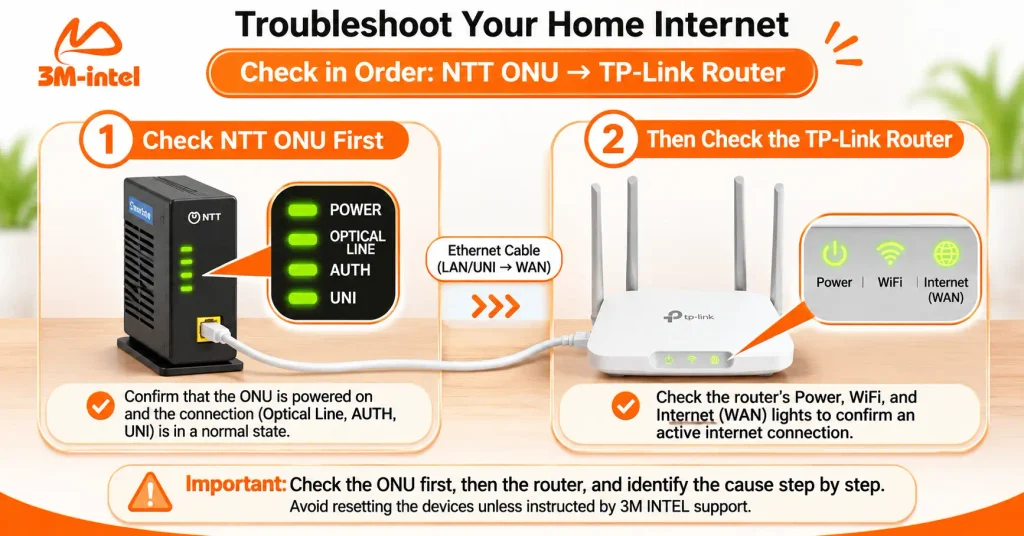
A step-by-step home internet troubleshooting guide, starting with the NTT ONU and then the TP-Link router, to help identify connection issues and avoid unnecessary device resets.
5. Frequently Asked Questions About NTT ONU and TP-Link Indicator Lights
Why Is My Internet Not Working Even Though All ONU Lights Are Green?
Normal ONU indicators suggest that certain equipment functions and connection conditions are operating correctly.
However, internet access may still be unavailable due to router configuration, PPPoE/IPoE settings, or an issue with the internet service provider.
Should I Restart the ONU if the UNI Light Keeps Blinking?
Not necessarily.
A blinking UNI indicator can represent normal Ethernet data transmission.
Check the instructions for your device model before restarting or resetting the equipment.
Does an Orange Internet Light Mean My TP-Link Router Is Broken?
No.
On some TP-Link models, an orange Internet light means that the router has not established an internet connection.
The cause may involve configuration or service availability rather than a hardware failure.
Should I Press the Reset Button if My ONU and Router Cannot Connect to the Internet?
Avoid resetting the devices before identifying the problem.
If your equipment was preconfigured by the service provider, resetting it could remove important internet connection settings.
6. Contact 3M INTEL for Home Internet Troubleshooting Support
Checking indicator lights is a useful first step toward identifying possible connection problems, but it does not replace technical diagnosis or confirmation of your service status by the provider.
Customers using 3M INTEL Home Internet services can contact the support team for guidance on equipment checks and common connection issues.
Before requesting assistance, prepare the following information:
- Your NTT ONU and TP-Link router models.
- Clear photos showing which indicator lights are on, off, or blinking.
- The time when your internet connection stopped working.
- Any error messages displayed on your smartphone or laptop.
- Your service registration information, if required for verification.
Contact 3M INTEL
- Website: https://3mintel.jp/
- Home Internet: https://3mintel.jp/home-internet/
- Setup Guides: https://3mintel.jp/support/setup-guides/
- Troubleshooting: https://3mintel.jp/support/troubleshooting/
- Contact: https://3mintel.jp/contact/
- Email: 3mintel.japan@gmail.com
3M INTEL – Understand Your Equipment, Identify Connection Issues, and Manage Your Home Internet More Confidently in Japan.