Learn how to connect a TP-Link router to an NTT ONU in Japan, configure WiFi, check internet access, and troubleshoot common issues with 3M INTEL.
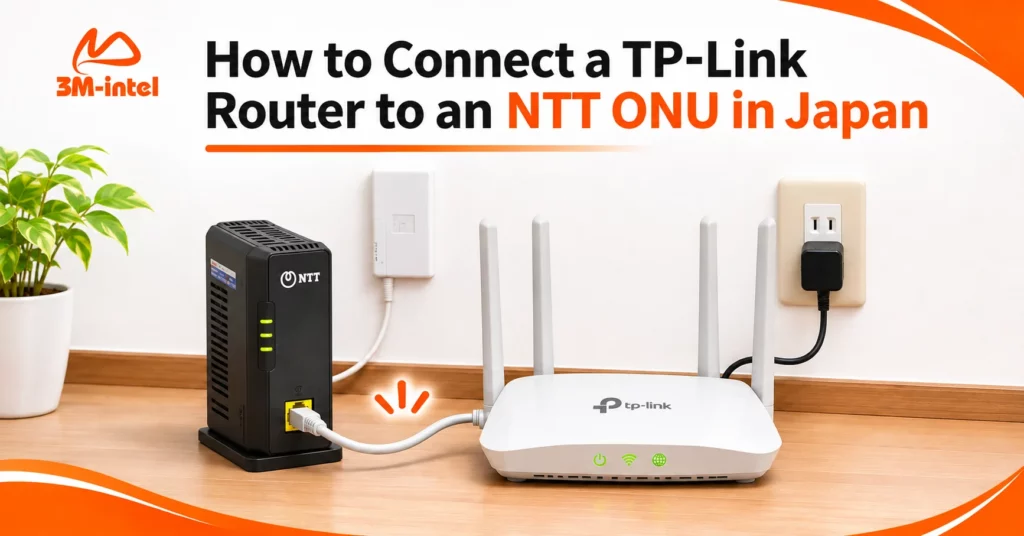
To connect a TP-Link router to an NTT ONU in Japan, use an Ethernet cable to connect the LAN/UNI port on the ONU to the WAN/Internet port on the TP-Link router. Then, power on the devices, connect your smartphone or computer to the TP-Link WiFi network, and check your internet connection. If internet access is unavailable, additional PPPoE or IPoE configuration may be required, depending on your service provider.
For people moving into a new home or setting up fixed-line internet in Japan for the first time, understanding the equipment and connecting the correct ports are essential steps.
3M INTEL (3Mintel株式会社) provides Home Internet services using NTT Hikari infrastructure in Japan. This guide explains how to connect a TP-Link router to a standalone NTT ONU, check your connection, troubleshoot common problems, and identify when technical support is needed.
1. What Are the Functions of an NTT ONU and a TP-Link Router?
In Japan’s fiber-optic internet systems, the ONU (Optical Network Unit) and WiFi router perform different functions.
| Device | Function |
| NTT ONU | Receives the optical signal from the fiber connection and provides an Ethernet interface for network equipment |
| TP-Link Router | Manages the home network, provides WiFi access, and connects devices such as smartphones, laptops, and smart TVs |
For installations using a standalone ONU, the typical connection is:
Fiber-Optic Line → NTT ONU → Ethernet Cable → TP-Link Router → Smartphone / Laptop / TV
Some homes in Japan use an NTT Home Gateway that already includes router functionality. In these cases, the TP-Link connection method and operating mode may be different.
Always identify your equipment before changing any settings.
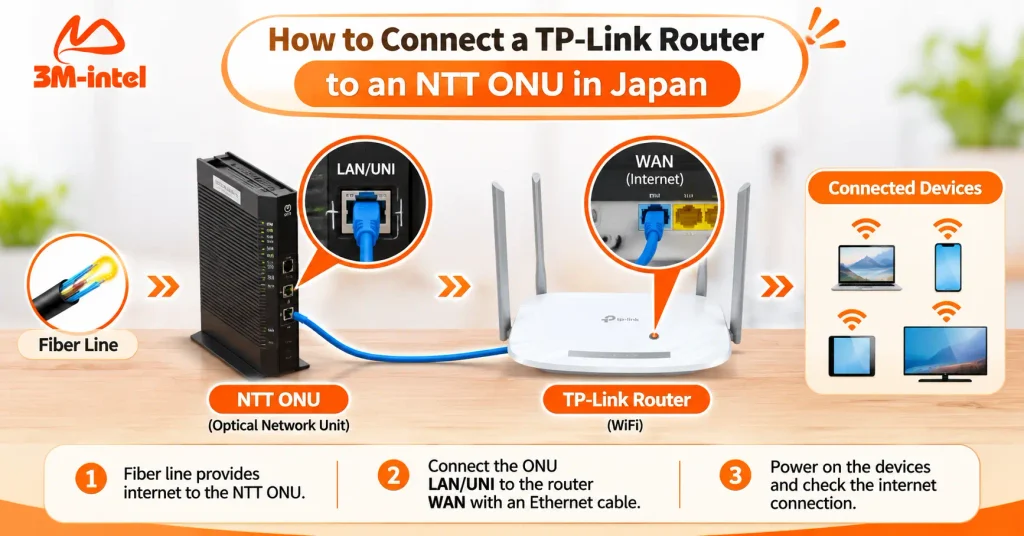
A fiber internet connection diagram showing how to connect the NTT ONU LAN/UNI port to the TP-Link router WAN port and provide connectivity to home devices.
2. What Do You Need Before Connecting the Devices?
Before starting, prepare and check the following:
- NTT ONU: The device has been installed, connected to the fiber line, and supplied with power.
- TP-Link Router: The router and its power adapter are available and functioning properly.
- Ethernet Cable: A suitable LAN cable for connecting the ONU to the router.
- Smartphone or Laptop: A device for connecting to WiFi and testing internet access.
- Internet Service Information: The connection method required by your provider, such as PPPoE, IPoE, or another supported configuration.
If your internet service requires PPPoE, you will need the PPPoE username and password supplied by your provider.
These are not the same as your WiFi password.
Safety note: Do not disconnect or disassemble the fiber-optic cable or ONU. Never look directly into an optical connector. If the fiber equipment has not been installed correctly, contact the installation provider.
3. How to Connect a TP-Link Router to an NTT ONU: Step-by-Step Guide
Step 1: Connect the Ethernet Cable to the Correct Ports
Locate the Ethernet port on your NTT ONU, typically labeled LAN or UNI.
Then follow these steps:
- Connect one end of the Ethernet cable to the LAN/UNI port on the NTT ONU.
- Connect the other end to the WAN/Internet port on the TP-Link router.
- Connect the devices to power according to the manufacturer’s or installation provider’s instructions.
- Allow the devices to start and check their status indicators.
Do not connect the ONU to a TP-Link LAN port when the TP-Link device is configured as the main router, unless your provider has instructed you to use a different setup.
Step 2: Connect Your Smartphone or Laptop to TP-Link WiFi
Once the router is powered on, open the WiFi settings on your smartphone or laptop.
- Find the router’s WiFi network name (SSID).
- Enter the WiFi password provided on the device label or in your setup information.
- Wait for your device to establish a WiFi connection.
If you want to change the network name or password, follow the instructions for your specific TP-Link model.
Being connected to WiFi does not necessarily mean that your internet connection is working.
You must also confirm that your device can access the internet.
Step 3: Check Your Internet Connection Type
Depending on your NTT Hikari service and internet provider, the router may require one of the following configurations.
| Connection Type | What You Need to Know |
| PPPoE | Requires the PPPoE username and password supplied by your internet service provider |
| IPoE / IPv4 over IPv6 | Requires a supported connection method and a compatible TP-Link router model |
| Dynamic IP (DHCP) | Used when required by your provider or existing network configuration |
| Access Point (AP) Mode | May be appropriate when an upstream NTT Home Gateway already handles routing |
For PPPoE services, users can generally access the TP-Link management interface, select PPPoE as the internet connection type, and enter the required account credentials.
For IPoE services, technologies such as v6 Plus, DS-Lite, or OCN Virtual Connect may require compatible hardware and firmware.
Do not randomly change WAN, IPv6, or routing settings if you have not confirmed which connection method your service uses.
3M INTEL Home Internet customers should contact the support team to confirm the correct connection method before modifying advanced router settings.
Step 4: Test Your Internet Connection
After connecting and configuring the equipment:
- Check the internet connection status on the TP-Link router.
- Open a web browser and visit a website.
- Test internet access using both a smartphone and a laptop.
- If WiFi is connected but internet access is unavailable, review the Ethernet connection and internet settings.
If your devices can browse the internet normally, the basic connection setup is complete.
4. TP-Link Is Connected to the NTT ONU but There Is No Internet: What Should You Do?
If your TP-Link router cannot access the internet, check the following common issues.
| Problem | What to Check |
| NTT ONU has no power indicator | Check the power adapter and electrical connection |
| TP-Link does not detect the WAN connection | Check the Ethernet cable and confirm that the correct WAN port is being used |
| WiFi works but there is no internet access | Check the fiber connection status and PPPoE/IPoE configuration |
| PPPoE authentication fails | Verify the PPPoE username, password, and service activation status |
| Some internet services are unavailable | Review IPv6/IPoE compatibility and provider-specific settings |
You may restart your equipment according to the relevant technical instructions if there are no safety warnings or hardware issues.
However, avoid performing a factory reset on a preconfigured NTT ONU or TP-Link router without appropriate guidance.
A factory reset may erase important connection settings and interrupt your internet service.
If the issue continues, consult the 3M INTEL Troubleshooting Guide or contact the support team.
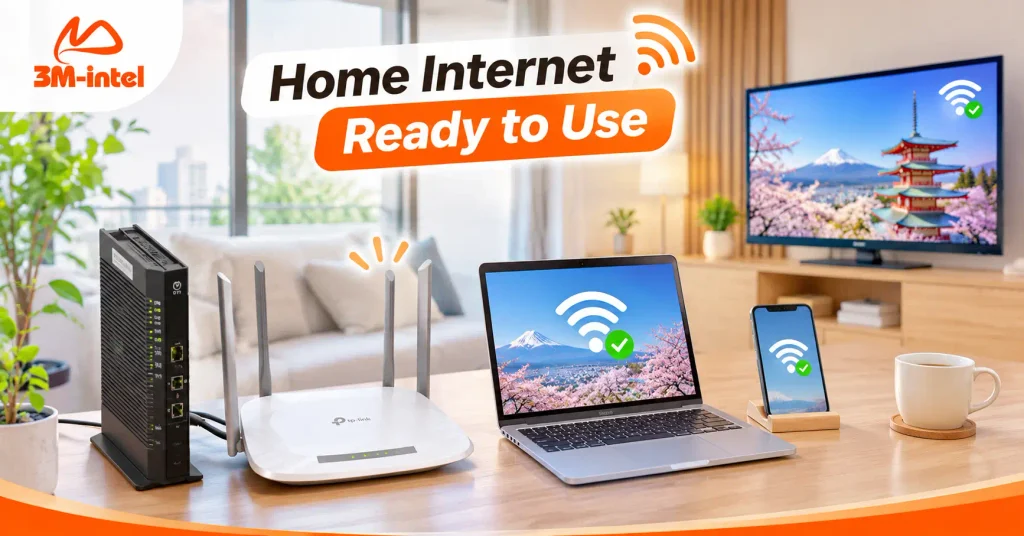
A home internet setup featuring an NTT ONU and TP-Link router, providing WiFi connectivity for laptops, smartphones, and smart TVs in a Japanese apartment.
5. Frequently Asked Questions About Connecting TP-Link to an NTT ONU
Will the Internet Work Immediately After Connecting the ONU to the TP-Link Router?
Not always.
If your service is already activated and the router has the correct configuration, internet access may become available after connecting the devices.
However, some services require additional PPPoE or IPoE setup.
Can I Use Any TP-Link Router With an NTT ONU?
Not necessarily.
Compatibility depends on the router’s technical specifications, the connection method, and your internet service provider’s requirements.
This is particularly important for IPv4 over IPv6 services in Japan.
Why Does My Phone Connect to WiFi but Have No Internet Access?
Your phone may be successfully connected to the router’s local WiFi network while the router itself cannot establish an internet connection.
Check the WAN cable, ONU status indicators, and internet connection settings.
Should I Press the Reset Button to Fix the Problem?
Avoid resetting the router before identifying the cause.
A factory reset may remove essential settings, including PPPoE credentials or other provider-specific configurations.
6. Contact 3M INTEL for Home Internet Setup Support
Connecting a TP-Link router to an NTT ONU requires the correct LAN-to-WAN connection, a compatible internet connection method, and appropriate device settings.
If you have connected the Ethernet cable correctly but still cannot access the internet, check your service status and contact technical support before making advanced configuration changes.
3M INTEL (3Mintel株式会社) provides Home Internet solutions using NTT Hikari infrastructure in Japan, along with guidance and support channels for customers setting up their home connections.
When requesting assistance, prepare the following information:
- Your TP-Link router model and NTT ONU model.
- Photos of the connected ports and device status indicators.
- Any error messages displayed on your smartphone, laptop, or router management interface.
- Your installation address or registered service information.
Contact 3M INTEL
- Website: https://3mintel.jp/
- Home Internet: https://3mintel.jp/home-internet/
- Setup Guides: https://3mintel.jp/support/setup-guides/
- Troubleshooting: https://3mintel.jp/support/troubleshooting/
- Contact: https://3mintel.jp/contact/
- Email: 3mintel.japan@gmail.com
3M INTEL – Clear Setup Guidance, Proper Device Configuration, and Reliable Support for Home Internet Users in Japan.