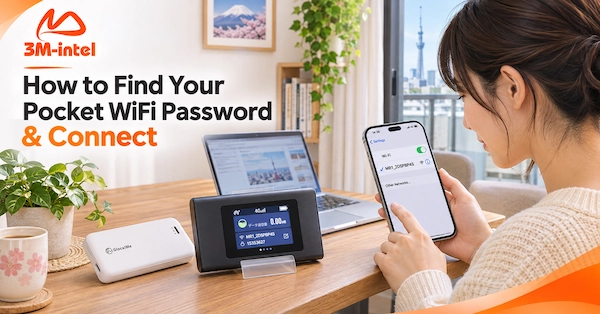
Learn how to find the WiFi name (SSID) and password on GlocalMe U20 and MR1, and connect your phone to 3M INTEL Pocket WiFi in Japan.
To connect to 3M INTEL Pocket WiFi, turn on the device, find its WiFi network name (SSID), check the password on the device or in the provided information, and enter it on your smartphone or laptop. No fixed-line internet installation is required.
Depending on your Pocket WiFi model, the SSID and password may be displayed in different locations.
3M INTEL (3Mintel株式会社) provides 100GB/month and Full Data Pocket WiFi solutions in Japan, along with setup instructions and troubleshooting guidance.
Here is how to find your WiFi password and connect your devices.
1. What Are a Pocket WiFi SSID and Password?
Before connecting, you need to understand two terms:
- SSID (WiFi Network Name): The name of the wireless network created by your Pocket WiFi device.
- WiFi Password: The password used to access that wireless network.
For example, when you open the WiFi settings on your smartphone, you may see a network name beginning with GlocalMe or a custom name assigned to your device.
Select the correct SSID and enter its corresponding password.
Important: Your WiFi password is different from your service account password, smartphone PIN, or device administrator password.
2. How to Find Your 3M INTEL Pocket WiFi Password
3M INTEL provides different Pocket WiFi models. The location of the SSID and password depends on the device you are using.
For GlocalMe U20
On the GlocalMe U20, the WiFi network name and password are typically printed on a label on the back of the device.
Follow these steps:
- Locate the information label on your Pocket WiFi device.
- Find the WiFi Name/SSID and WiFi Password fields, or equivalent labels.
- Use the displayed information to connect your smartphone or laptop.
If the information has been changed or the label is unreadable, contact 3M INTEL for guidance based on your rental device.
For Pocket WiFi MR1
The MR1 is a Pocket WiFi device with a built-in display.
After turning it on, you can check the WiFi network name and password through the device interface.
Follow these steps:
- Turn on the MR1 Pocket WiFi.
- Wait for the device to finish starting up.
- Open the WiFi information section to view the SSID and password.
- Use those details to connect your phone or laptop.
Menu names and navigation may vary depending on the software version.
Important: If you use a different model, check the device label, display, or information provided with your rental. Do not assume all Pocket WiFi devices display their passwords in the same way.
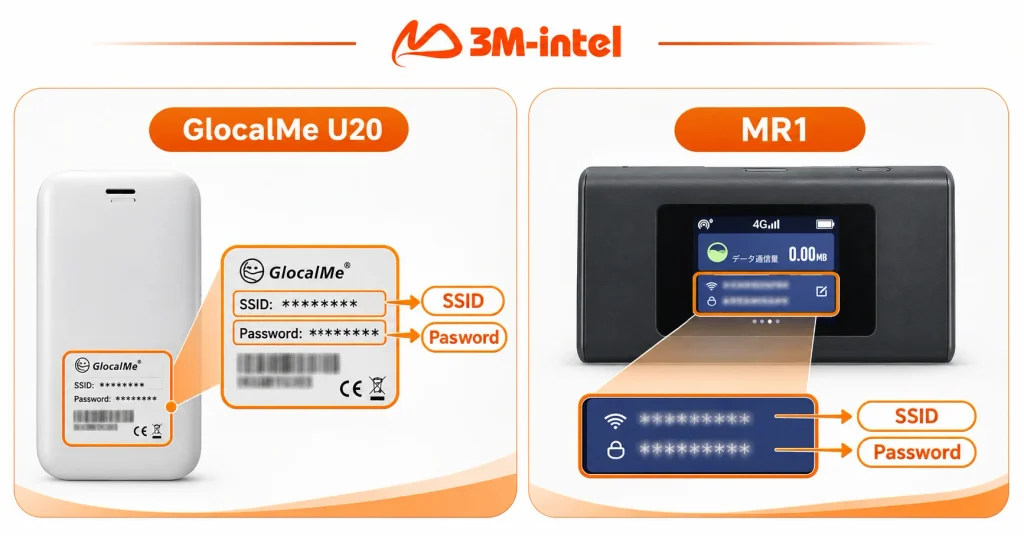
Learn how to find the WiFi network name (SSID) and password on the GlocalMe U20 device label or the MR1 Pocket WiFi screen.
3. How to Connect Pocket WiFi to Your Phone or Laptop
Once you have the SSID and password, follow these four steps.
Step 1: Turn On the Pocket WiFi
Press the power button and wait for the device to start broadcasting its WiFi network.
Make sure the device has sufficient battery power and has been activated according to your service conditions.
Step 2: Find the Correct WiFi Network (SSID)
Open the WiFi settings on your smartphone or laptop.
Find the network name that matches the SSID displayed on your Pocket WiFi device.
Step 3: Enter the WiFi Password
Select the network, enter the correct password, and tap Connect or Join.
Pay attention to uppercase and lowercase letters, numbers, and special characters.
Step 4: Check Your Internet Connection
Once your device shows that it is connected, open a browser or application to confirm internet access.
| Device | How to Open WiFi Settings |
| iPhone | Settings → Wi-Fi |
| Android | Settings → Wi-Fi / Connections |
| Windows Laptop | Settings → Network & Internet → Wi-Fi |
| MacBook | System Settings → Wi-Fi |
One Pocket WiFi device can support multiple connected devices. However, the maximum number of connections depends on the model and actual performance conditions.
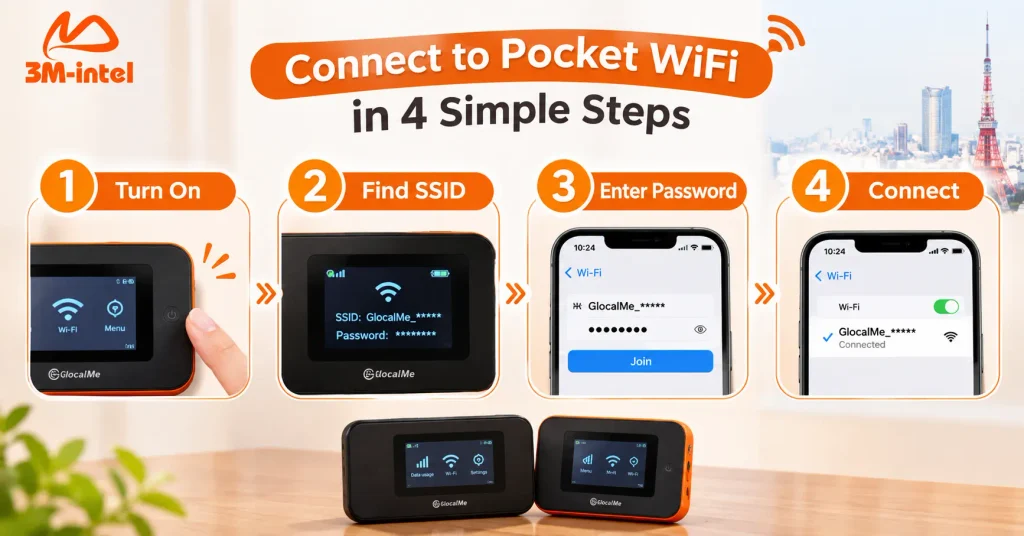
Connect your smartphone to 3M INTEL Pocket WiFi in four steps: turn on the device, find the WiFi network (SSID), enter the password, and connect.
4. What If You Cannot Find the WiFi Network or the Password Does Not Work?
Connection problems can occasionally occur even when your Pocket WiFi device is powered on.
| Problem | What to Do |
| WiFi Network Not Visible | Check the power, WiFi broadcasting status, and restart the device according to its instructions |
| Incorrect Password | Recheck the password, including uppercase letters and special characters |
| Connected to WiFi but No Internet | Check the mobile network signal, data plan status, and usage location |
| Frequent Disconnections | Check battery power, network coverage, and the number of active devices |
| Forgotten or Missing Password | Check the label, display, rental information, or contact 3M INTEL |
If your smartphone has saved an old password, select Forget This Network, then reconnect using the current password.
Do not perform a factory reset on your Pocket WiFi without guidance, as this may change important settings on your rental device.
If the problem continues, contact 3M INTEL with your Pocket WiFi model, a description of the issue, and screenshots or photos of any error messages, if available.
5. How Does 3M INTEL Support Pocket WiFi Users?
3M INTEL provides 100GB and Full Data Pocket WiFi services in Japan, allowing customers to access mobile internet without installing a fixed-line connection at home.
In addition to providing Pocket WiFi devices, 3M INTEL offers guidance from receiving the device to connecting and using the service.
Customers can access the following official resources:
- Setup Guides: Instructions for setting up and using connectivity services.
- Troubleshooting: Guidance on checking common connection problems.
- Customer Support: Official contact channels for additional assistance.
If you cannot find your password or connect to the network, provide your device model, a photo of the relevant label or screen, and a description of the problem.
Do not publicly share your WiFi password or device administrator credentials on social media.
Providing model-specific information helps the support team guide you without unnecessary changes to your rental equipment.
6. Frequently Asked Questions About Pocket WiFi Passwords
Where Can I Find My 3M INTEL Pocket WiFi Password?
Depending on the model, the password may appear on the back label, the device display, or the information supplied with your rental.
For the GlocalMe U20, check the device label. For the MR1, check the information available on its screen.
Can Multiple Phones Connect Using the Same WiFi Password?
Yes. Multiple devices can connect using the same SSID and password, within the connection limits supported by the Pocket WiFi model.
Why Is There No Internet Even After Entering the Correct Password?
Connecting to WiFi does not necessarily mean the Pocket WiFi device has an active internet connection.
Check mobile network coverage, service status, and data availability.
Who Should I Contact If I Forget My Pocket WiFi Password?
If you cannot locate the password on the device or in the information provided, contact 3M INTEL for guidance based on your specific Pocket WiFi model.
7. Connect to Pocket WiFi Easily With 3M INTEL
To use 3M INTEL Pocket WiFi, simply identify the correct SSID, enter the WiFi password, and check your internet connection.
The password location varies by device model, so always refer to the information provided with your rental equipment.
With its Pocket WiFi services in Japan, 3M INTEL provides setup guidance and support resources for customers experiencing connection difficulties.
Need help finding your password or connecting to Pocket WiFi? Contact 3M INTEL for assistance.
Contact 3M INTEL
- Website: https://3mintel.jp/
- Email: 3mintel.japan@gmail.com
- WiFi Services: https://3mintel.jp/
- Registration and Payment Information: https://3mintel.jp/
3M INTEL – Simple Connectivity, Clear Instructions, and Support When You Need It.