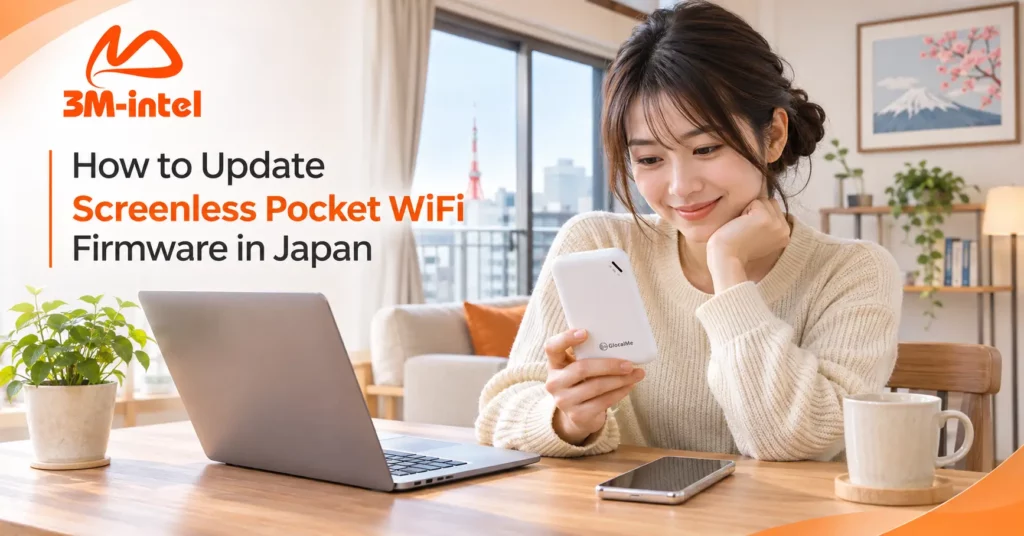
Learn how to safely check and update firmware on screenless Pocket WiFi devices like GlocalMe U20 in Japan with technical support from 3M INTEL.
To update firmware on a screenless Pocket WiFi device, first identify the correct model, check the available firmware information, and follow the official instructions provided by the manufacturer or service provider. If you are renting Pocket WiFi from 3M INTEL, contact the support team before attempting an update to avoid affecting the device configuration.
Unlike Pocket WiFi devices with screens, models such as the GlocalMe U20 primarily use LED indicator lights to display their status. Therefore, checking and updating firmware may require a compatible management tool or a model-specific procedure.
3M INTEL (3Mintel株式会社) provides Pocket WiFi solutions in Japan, along with setup guides and technical support channels to help customers address connectivity issues.
1. Why Do Screenless Pocket WiFi Devices Need Firmware Updates?
Firmware is the software that controls the Pocket WiFi device’s functions, including mobile network connectivity, WiFi broadcasting, and system management.
Depending on the update, manufacturers may improve stability, fix connection problems, adjust compatibility, or address security vulnerabilities.
However, slow or disconnected WiFi does not necessarily mean that the firmware is outdated.
Before updating, check the mobile signal, remaining data allowance, power status, and internet connection.
If the device is working normally, avoid changing its firmware simply because you find a newer version online.
2. How to Check Firmware Information on GlocalMe U20
The GlocalMe U20 does not have a screen for viewing settings directly, unlike screen-equipped Pocket WiFi models such as the MR1.
Instead, users can check the device identification and operating status before requesting an update.
Step 1: Identify the Device Model
Check the model name on the device label or in the equipment information provided by 3M INTEL.
Step 2: Check the Indicator Lights
Turn on your Pocket WiFi and observe the power, battery, WiFi, and mobile signal indicators according to the model’s instructions.
These lights help indicate the device’s operating status, but they do not necessarily display the firmware version.
Step 3: Check Device Management Information
Some GlocalMe devices may allow users to view device information through a compatible app or management interface.
However, customers should confirm which method is supported by the specific model and configuration provided by 3M INTEL.
Step 4: Contact 3M INTEL to Confirm the Firmware
If you cannot find the software version, provide the device model and a description of its condition to the support team.
Avoid accessing administrator settings or changing system configurations without official guidance.
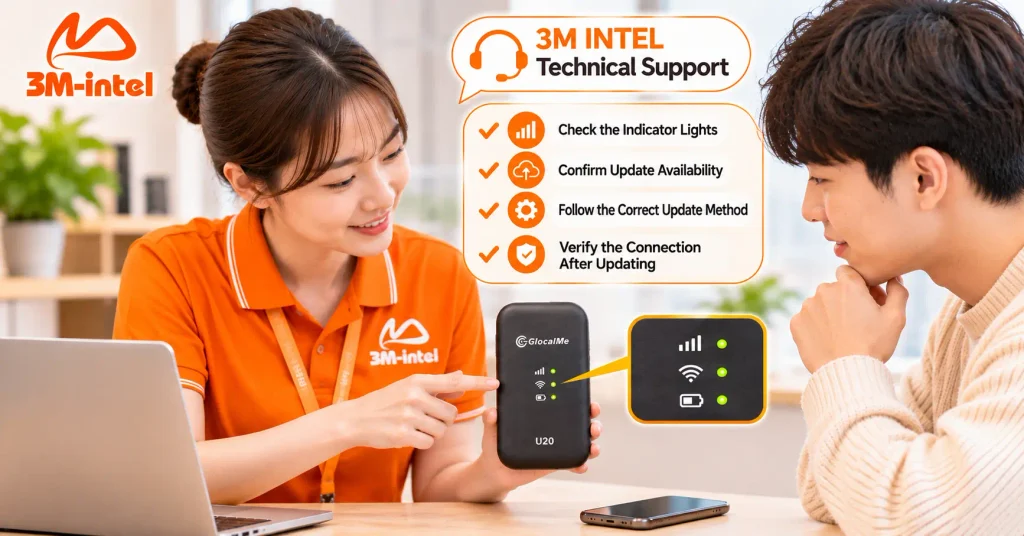
3M INTEL staff help customers check indicator lights, confirm the correct firmware update method, and verify GlocalMe U20 connectivity in Japan.
3. How to Update Screenless Pocket WiFi Firmware Safely
For rental devices, only perform an update after confirming that compatible firmware is available and the update procedure has been approved.
Step 1: Confirm Whether an Update Is Needed
Contact 3M INTEL to check whether your device requires a firmware update, supports automatic updates, or needs a specific update procedure.
Step 2: Prepare the Device
Make sure the Pocket WiFi has sufficient battery power, a stable power supply, and is not overheating.
If the update requires downloading data through a mobile network, check the data usage conditions of your plan.
Step 3: Follow the Confirmed Update Procedure
If the device supports updates through an app, management system, or another method, use only the procedure confirmed for your model by the manufacturer or 3M INTEL.
Do not download firmware from unknown websites or install software intended for a different device model.
Step 4: Test the Connection After Updating
Once the update is complete, check the indicator lights and reconnect your smartphone or laptop to the Pocket WiFi.
Confirm that the device is broadcasting WiFi and that internet access works normally.
If a problem occurs, record the indicator light status and contact customer support.
4. Important Precautions When Updating Screenless Pocket WiFi
Customers using rental devices from 3M INTEL should take the following precautions:
| Recommended Actions | Actions to Avoid |
| Confirm the correct model and firmware | Installing firmware for another device |
| Contact 3M INTEL before updating | Installing firmware from unverified sources |
| Maintain a stable power supply | Disconnecting power during an update |
| Check connectivity after updating | Performing a factory reset without guidance |
| Record errors and indicator light status | Changing administrator settings without instructions |
Important: The Reset button on a Pocket WiFi device is not a firmware update button. Restoring factory settings may change the device configuration and will not necessarily resolve firmware-related problems.
If your device loses internet access, freezes, or behaves unexpectedly, perform basic troubleshooting before assuming that a firmware update is required.
5. How Does 3M INTEL Support Pocket WiFi Firmware Checks?
3M INTEL provides Pocket WiFi solutions in Japan, along with setup resources and support channels for customers experiencing device-related problems.
For screenless Pocket WiFi devices, customers can contact 3M INTEL for guidance based on their device model and actual conditions.
When requesting support, prepare:
- Device model, such as GlocalMe U20.
- Your current service plan.
- A description of the connection problem or update notification, if any.
- The status of the power, WiFi, and signal indicator lights.
- A photo of the device or firmware information, if available.
The official 3M INTEL website also provides Setup Guides and Troubleshooting resources to help customers investigate common connectivity issues.
Firmware update availability and procedures depend on the device model, software version, and equipment configuration.
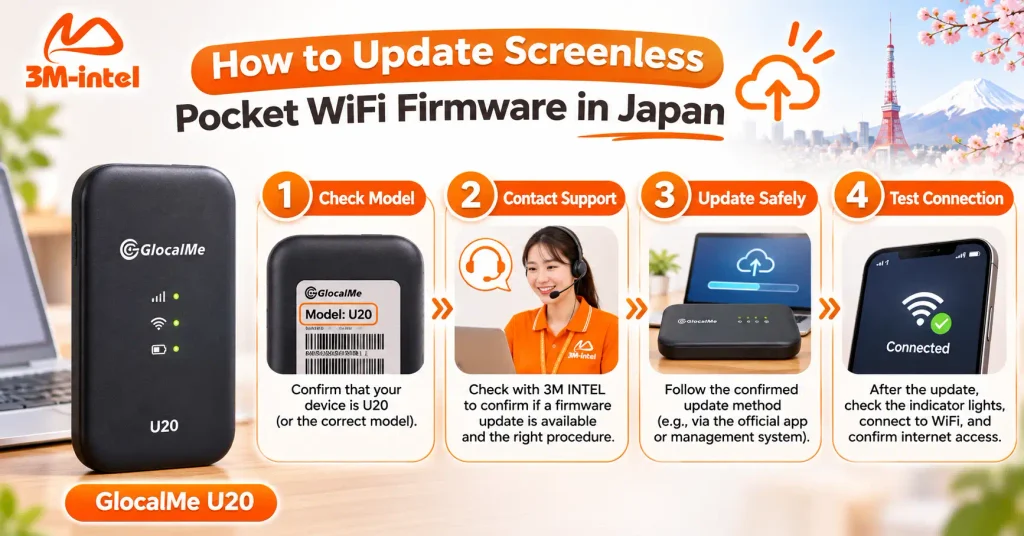
The screenless Pocket WiFi firmware update process includes four steps: check the device model, contact support, update safely, and test the internet connection.
6. Frequently Asked Questions About Screenless Pocket WiFi Firmware Updates
Can Screenless Pocket WiFi Devices Receive Firmware Updates?
Yes, if the model supports firmware updates. The update method depends on the device and the management system used by the provider.
Can I Update GlocalMe U20 Using My Smartphone?
You should not assume that every U20 device supports smartphone-based firmware updates. Confirm whether the rental device supports a compatible app or a specific update procedure.
Will Updating Firmware Make My Pocket WiFi Faster?
Some updates may improve performance or fix software-related issues, but they do not guarantee faster internet speeds.
Actual speeds also depend on mobile signal strength, your data plan, and network conditions.
What Should I Do if a Firmware Update Fails?
Do not repeatedly attempt to install unverified firmware or perform a factory reset without guidance.
Record the device’s condition and contact 3M INTEL for assistance.
7. Update Your Pocket WiFi Safely With 3M INTEL
Updating firmware on screenless Pocket WiFi requires the correct device model, compatible firmware, and an officially supported update procedure.
For rental devices such as the GlocalMe U20, confirming the procedure with the provider helps reduce the risk of configuration or connectivity problems.
If you need help checking your firmware or experience difficulties using Pocket WiFi in Japan, contact 3M INTEL for guidance.
Contact 3M INTEL
- Website: https://3mintel.jp/
- Email: 3mintel.japan@gmail.com
- WiFi Services: https://3mintel.jp/
- Registration and Payment Information: https://3mintel.jp/
3M INTEL – Safe Device Usage, Clear Guidance, and Support When You Need It.