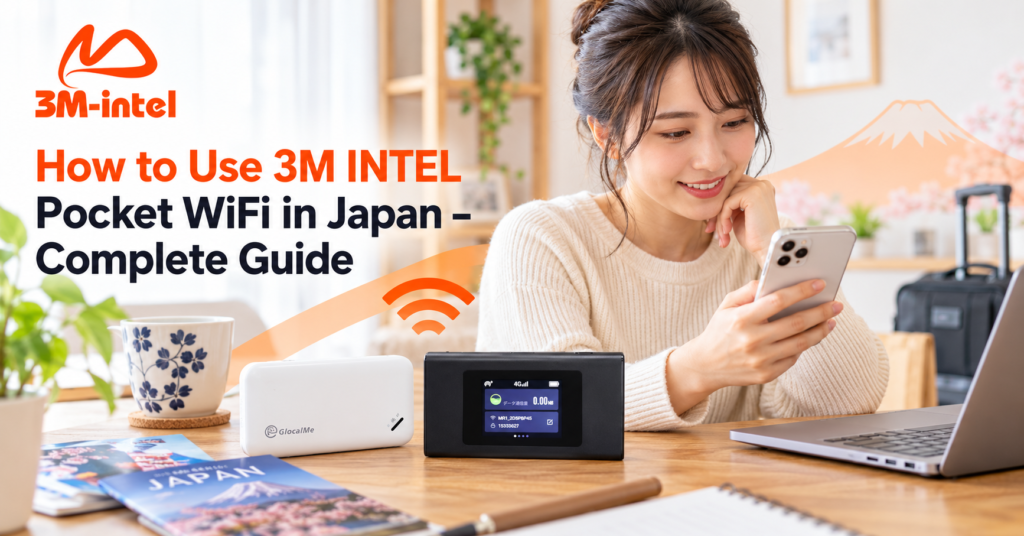
Learn how to use 3M INTEL Pocket WiFi in Japan, including device setup, WiFi connection, status checks, and basic troubleshooting tips.
To use 3M INTEL Pocket WiFi in Japan, simply turn on the device, find its WiFi network name (SSID), enter the password, and connect your smartphone or laptop. No fixed-line internet installation is required at home.
However, for a convenient experience and to avoid unexpected issues, customers should also understand how to choose a data plan, check their connection, make payments, and return the device.
3M INTEL (3Mintel株式会社) provides Pocket WiFi with 100GB/month and Full Data options for people living, studying, working, or frequently traveling within Japan.
Here is a complete guide from receiving your device to ending the service.
1. Check Your Pocket WiFi Device Before Use
After receiving your Pocket WiFi from 3M INTEL, check the device and included accessories.
Depending on the model and service package, the equipment may include:
- A Pocket WiFi router.
- A charging cable and charger, according to the equipment package.
- WiFi connection information.
- User instructions or support information.
The equipment provided depends on the confirmed device model and plan.
Before turning on the device, check the power supply, battery condition, and whether the device shows any visible signs of damage.
Important: Keep all accessories and equipment information in case you need technical support or need to return the device.
2. How to Connect 3M INTEL Pocket WiFi to Your Phone or Laptop
Pocket WiFi connects to a mobile network and creates a wireless network that other devices can use to access the internet.
Follow these five basic steps.
Step 1: Turn On the Pocket WiFi
Press the power button according to your device model’s instructions. Wait for the device to start and connect to the mobile network.
Step 2: Find the WiFi Network Name (SSID)
The SSID and password may appear on the device screen, equipment label, or in the information provided with your rental.
Step 3: Open WiFi Settings on Your Phone or Laptop
Go to WiFi settings and select the correct SSID for your Pocket WiFi device.
Step 4: Enter the Password
Enter the provided WiFi password carefully and wait for the connection to be established.
Step 5: Check Your Internet Connection
Open a browser or an application to confirm that internet access is working.
| Device | Where to Find WiFi Settings |
| iPhone | Settings → Wi-Fi |
| Android | Settings → Wi-Fi / Connections |
| Windows | Network & Internet → Wi-Fi |
| MacBook | System Settings → Wi-Fi |
You can connect multiple devices to one Pocket WiFi router, but the maximum number of connections and actual performance depend on the device model.
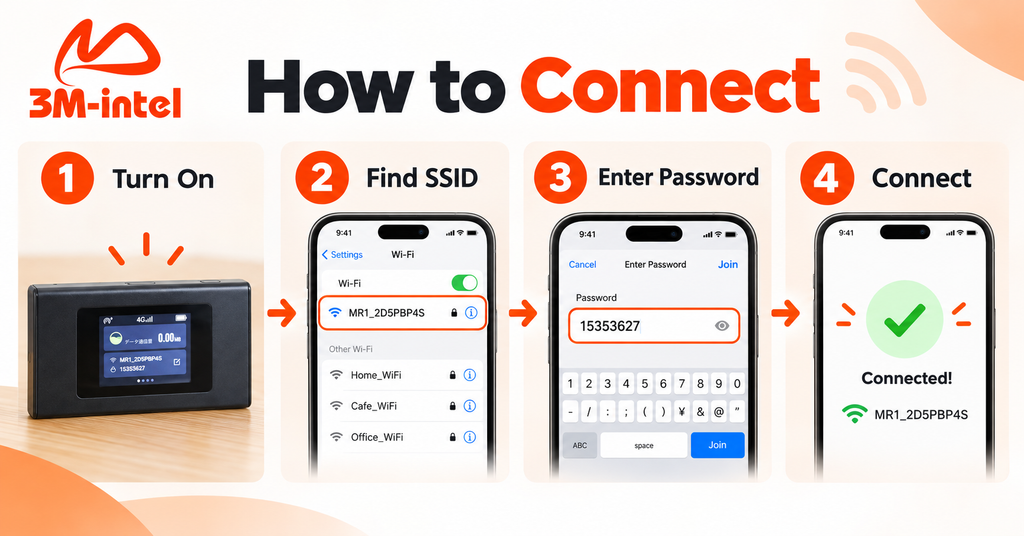
Follow four steps to connect your phone to 3M INTEL Pocket WiFi: turn on the device, find the WiFi network (SSID), enter the password, and connect.
3. How to Use Pocket WiFi Effectively in Japan
To maintain suitable connectivity, customers should pay attention to data usage, device placement, and battery condition.
Choose Between 100GB and Full Data
3M INTEL offers two main Pocket WiFi options:
| Data Plan | Suitable For |
| 100GB/month | Messaging, studying, working, and entertainment with manageable data consumption |
| Full Data | Customers who need frequent internet access or consume larger amounts of data |
The 100GB plan provides a total monthly data allowance of 100GB without dividing it into a fixed daily allowance.
For Full Data plans, customers should confirm any Fair Usage Policy (FUP), technical limitations, or speed management conditions.
Full Data does not automatically guarantee unrestricted high-speed internet at all times.
Tips for Everyday Use
- Charge the device according to its instructions and avoid leaving the battery fully depleted for extended periods.
- Place the Pocket WiFi in an open area with a suitable mobile network signal.
- Avoid covering the device or placing it near heat sources.
- Turn off the device when it is not needed, where appropriate for the model.
- Monitor your data usage and avoid unnecessary large downloads.
When sharing the connection with multiple devices, actual speeds may vary depending on the number of active users, mobile coverage, and simultaneous data consumption.
4. Common Pocket WiFi Problems and How to Fix Them
During use, Pocket WiFi may experience issues such as connection failures, WiFi access without internet, or slow speeds.
| Problem | Initial Troubleshooting |
| WiFi Network Not Visible | Check the power and WiFi broadcasting status |
| Incorrect Password | Recheck the SSID and password provided |
| Connected to WiFi but No Internet | Check mobile signal strength and data plan status |
| Slow Internet | Try changing location and reducing simultaneous device usage |
| Frequent Disconnections | Check the battery, power supply, and restart the device as instructed |
If you are in a basement, an enclosed building, or an area with weak mobile reception, try moving to a more open location.
Avoid performing a factory reset or changing unfamiliar network settings without guidance.
If the problem continues, visit the official 3M INTEL troubleshooting page:
When requesting support, provide the Pocket WiFi model, usage location, indicator light status, and a description of the issue so the support team can investigate more effectively.
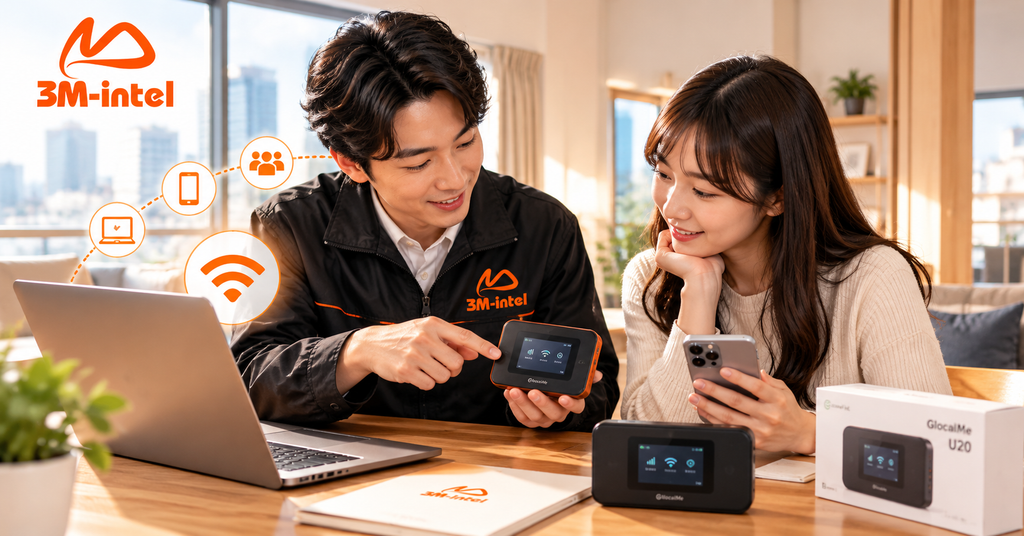
3M INTEL staff guide customers on how to use Pocket WiFi, check device settings, and connect to the internet in Japan.
5. Pocket WiFi Payments and Equipment Returns at 3M INTEL
In addition to using the device, customers should understand the payment and return policies that apply when ending the service.
Monthly Payments
3M INTEL Pocket WiFi service charges are paid according to the monthly billing cycle confirmed at registration.
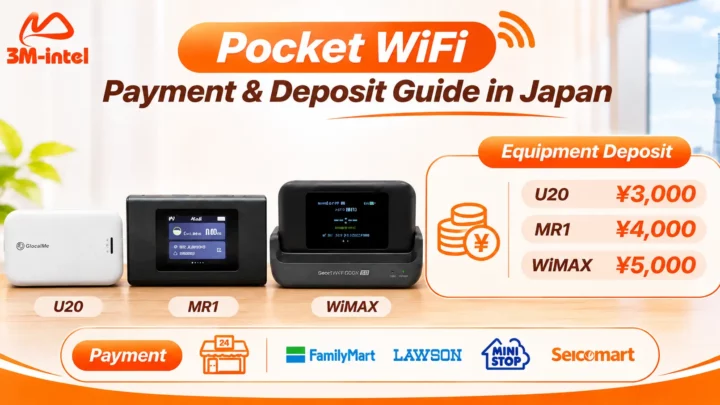
For payment-code transactions at convenience stores, customers can use the payment code provided by 3M INTEL at supported chains such as FamilyMart, Lawson, Mini Stop, and Seicomart.
Customers should confirm the payment amount, deadline, and available payment methods for their selected plan.
Equipment Deposits
Certain Pocket WiFi models require a deposit.
The equipment deposit is separate from the monthly internet service fee and is handled according to the applicable rental and refund conditions.
The deposit amount depends on the model and the policy confirmed during registration.
How to Return Your Pocket WiFi
When you no longer need the service, follow these steps:
- Contact 3M INTEL to confirm the service cancellation and return procedures.
- Prepare the Pocket WiFi device, charging cable, and any accessories included in the rental.
- Return the equipment using the address, method, and deadline provided.
- Confirm the equipment inspection result and deposit refund conditions.
3M INTEL processes deposit refunds after the equipment has been returned and the applicable requirements have been met.
Before returning your device, confirm the cancellation notice period, equipment condition requirements, liability for lost or damaged accessories, and any applicable charges.
6. How Does 3M INTEL Support Pocket WiFi Customers?
3M INTEL provides more than Pocket WiFi devices. It also offers guidance on registration, payments, everyday use, troubleshooting, and equipment returns.
Before registering, customers can discuss their usage area, expected rental period, number of connected devices, and data requirements to explore a suitable plan.
During the service period, customers can access:
- Setup Guides: Instructions for setting up devices and connections.
- Troubleshooting: Guidance for checking common connectivity problems.
- FAQ: Answers to questions about products, services, and usage conditions.
- Customer Support: Official contact channels for additional assistance.
3M INTEL also provides information about multilingual customer support, making it easier for international residents in Japan to access guidance when they experience connectivity issues.
7. Frequently Asked Questions About 3M INTEL Pocket WiFi
Does 3M INTEL Pocket WiFi Require Home Installation?
No. Pocket WiFi uses mobile networks, so no fixed-line installation is necessary.
After receiving and setting up the device, you can access the internet in areas with supported mobile network coverage.
Can One Pocket WiFi Connect Multiple Phones and Laptops?
Yes. However, the maximum number of connected devices and actual performance depend on the device model and simultaneous usage requirements.
Does the 100GB Pocket WiFi Plan Have a Daily Data Limit?
According to 3M INTEL’s product information, the 100GB plan provides a total monthly allowance rather than a fixed daily limit.
Customers should confirm what happens after the full 100GB allowance has been used.
Can I Get My Pocket WiFi Deposit Refunded When Returning the Device?
A deposit refund may be available under the applicable rental conditions if the device and required accessories are returned as instructed.
Contact 3M INTEL to confirm the specific return procedure and refund processing timeframe.
8. Enjoy Convenient Pocket WiFi Connectivity With 3M INTEL
Using 3M INTEL Pocket WiFi is straightforward: turn on the device, select the correct SSID, enter the password, and connect to the internet.
For a better experience, customers should choose a suitable data plan, use the equipment correctly, and understand the payment and return policies.
With 100GB and Full Data Pocket WiFi options, 3M INTEL provides product information and usage guidance throughout the rental process in Japan.
Need to register for Pocket WiFi or get technical support? Contact 3M INTEL for guidance.
Contact 3M INTEL
- Website: https://3mintel.jp/
- Email: 3mintel.japan@gmail.com
- WiFi Services: https://3mintel.jp/
- Registration and Payment Information: https://3mintel.jp/
3M INTEL – Flexible Connectivity, Simple Setup, and Support When You Need It.