Learn how to use SIM and WiFi services and troubleshoot connection issues in Japan with setup guides and technical support from 3M INTEL.
Customers using SIM, eSIM, Pocket WiFi, or Home WiFi services from 3M INTEL can access setup instructions, connectivity checks, and troubleshooting guides on the official website. If the issue continues, customers can contact the support team for guidance based on their service and device.
3M INTEL (3Mintel株式会社) provides connectivity solutions for people living, studying, working, and traveling in Japan. Beyond providing products, 3M INTEL aims to help customers understand how to set up their services, identify common connection problems, and know where to seek assistance.
1. How to Set Up and Use 3M INTEL Services
Each product has different setup requirements. Customers should follow the instructions for the service they have registered for.
| Service | Basic Setup Instructions |
| Data SIM / Voice SIM | Insert the SIM, enable mobile data, configure APN settings if required, and check connectivity |
| eSIM | Check device compatibility, scan the QR code, select the eSIM for mobile data, and activate according to the instructions |
| Pocket WiFi | Turn on the device, select its WiFi network name (SSID), enter the password, and test the connection |
| Fixed WiFi / Home Internet | Complete installation, connect devices to the router, and check internet access |
SIM and eSIM Setup
For a physical SIM, insert the SIM card correctly, check the mobile signal, and configure the APN if required by your plan.
For an eSIM, use the provided QR code to add the eSIM to a compatible smartphone. After installation, select the correct eSIM for mobile data and enable Data Roaming if required by the plan instructions.
Important: Do not delete an installed eSIM before identifying the issue. Some QR codes support installation only once.
Connecting to Pocket WiFi and Home WiFi
Pocket WiFi can generally be used after receiving the device, turning it on, and connecting to the correct WiFi network using its SSID and password.
For Home WiFi, customers must complete the installation process at their registered address before connecting smartphones, laptops, or Smart TVs to the router.
For detailed instructions, visit:
Setup Guides: https://3mintel.jp/setup-guides/
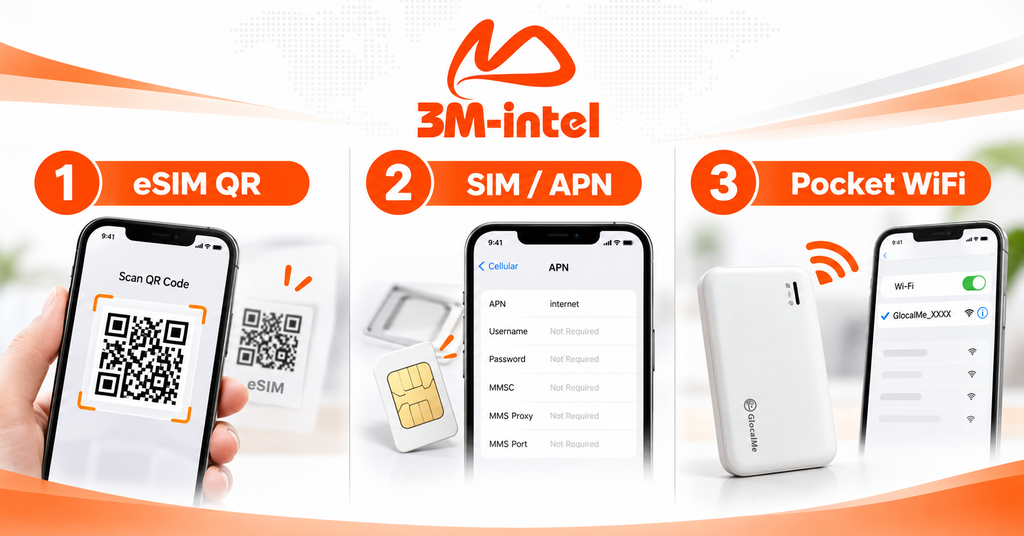
3M INTEL setup guidance covers eSIM QR code installation, SIM APN configuration, and Pocket WiFi device connection.
2. Common Connection Problems and Troubleshooting
Customers may occasionally experience problems such as no internet access, SIM network issues, or slow WiFi connections.
The following checks can help identify common causes.
| Problem | What to Check |
| SIM/eSIM has a signal but no internet | Check Mobile Data, the selected data SIM, APN settings, and Data Roaming if required |
| eSIM installed but not connecting | Check whether the eSIM is enabled, selected for data, and connected to the network |
| Cannot connect to Pocket WiFi | Check power, SSID, password, and the number of connected devices |
| Slow or unstable WiFi | Check signal strength, router placement, simultaneous device usage, and connection status |
If the problem continues, try turning Airplane Mode on and off for mobile connections, or restarting the device according to its instructions.
For routers and ONU equipment, check the power supply, cables, and indicator lights before taking further action.
Do not perform a factory reset on your router or delete your eSIM without proper guidance, as this may remove important connection settings.
For additional troubleshooting instructions, visit:
Troubleshooting: https://3mintel.jp/troubleshooting/
3. When Should You Contact Technical Support?
If basic troubleshooting does not resolve the problem, customers should contact 3M INTEL for further assistance.
Common situations include:
- SIM or eSIM cannot connect after following the setup instructions.
- Pocket WiFi does not provide internet access or frequently disconnects.
- Home WiFi remains offline after checking the equipment.
- APN settings or other connection parameters are unclear.
- Internet performance remains slow or unstable for an extended period.
What Information Should You Prepare?
To help the support team understand the issue, customers should provide:
- Service type: SIM, eSIM, Pocket WiFi, or Home WiFi.
- Device model: Smartphone, router, or other relevant equipment.
- Operating system: iOS or Android, if the issue involves SIM/eSIM.
- Problem description: What happened and when the issue started.
- Screenshots or photos: Error messages or device indicator lights, if available.
For example, instead of simply reporting “My WiFi is not working,” you could explain:
“My Pocket WiFi is powered on, and my phone connects to the WiFi network, but I cannot access the internet.”
Providing specific information helps the support team identify the problem and recommend more appropriate troubleshooting steps.
4. How Does 3M INTEL Support Its Customers?
3M INTEL provides connectivity services and practical setup resources for customers in Japan, helping users manage their connections from initial setup to troubleshooting.
The main support resources include:
Setup Guides
Step-by-step instructions for eSIM installation, APN configuration on iOS and Android, mobile data settings, and connection checks.
Troubleshooting
Guidance to help customers identify and check common SIM, eSIM, and WiFi connection issues.
Frequently Asked Questions (FAQ)
Answers to common questions about products, devices, setup procedures, and service usage.
Contacting Customer Support
If self-service instructions do not resolve an issue, customers can send a support request through the official email address or contact channels listed on the website.
3M INTEL also provides information about multilingual customer support, helping international residents navigate telecom services in Japan.
However, the available troubleshooting methods and resolution process depend on the service, device, and cause of the problem. Customers should contact the support team to confirm the appropriate next steps.
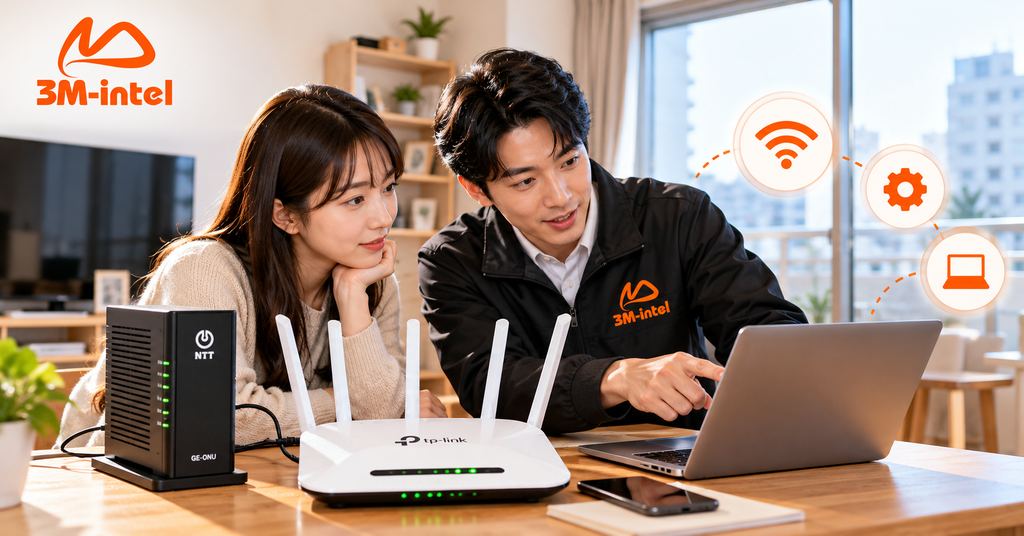
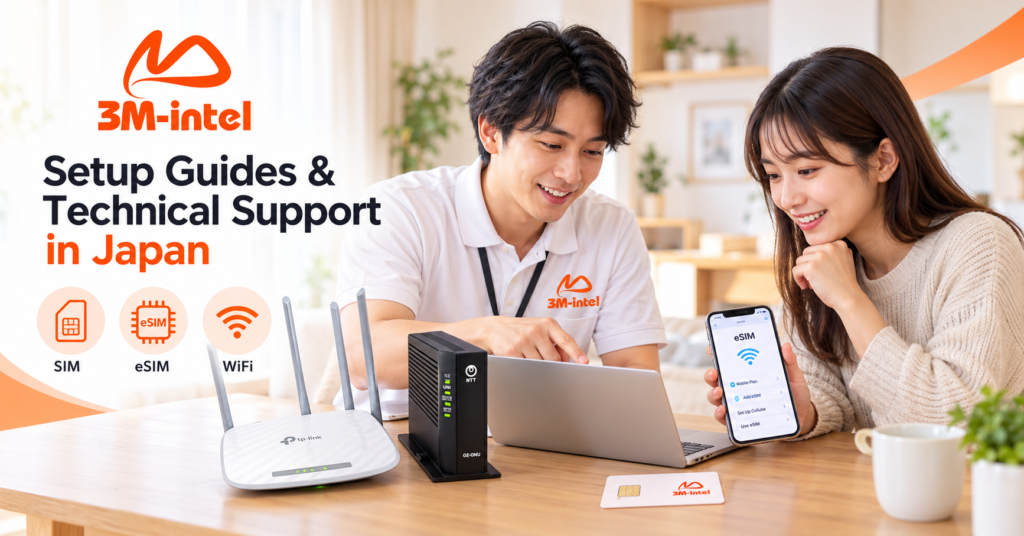
3M INTEL staff help customers check their devices, configure connections, and troubleshoot WiFi issues in Japan.
5. Frequently Asked Questions About 3M INTEL Technical Support
Can I Install a 3M INTEL eSIM Myself?
Yes. If your smartphone supports eSIM and meets the selected plan’s requirements, you can follow the QR code installation instructions provided on the 3M INTEL website.
What Should I Do If My SIM Has No Internet Access?
Check that mobile data is enabled, the correct SIM is selected for data, and APN settings are configured properly. Restart your phone if needed. If the issue continues, contact customer support.
What If My Pocket WiFi Connects but Has No Internet?
Check the device status, mobile network signal, and service conditions, then restart the device according to the instructions. If the problem persists, provide the device model and a description of the issue to 3M INTEL.
How Can I Contact 3M INTEL Technical Support?
Customers can visit the Setup Guides and Troubleshooting pages or email info@3mintel.jp for further guidance.
6. Stay Connected With 3M INTEL Setup Guides and Technical Support
Understanding how to set up your service and where to get help when problems occur is an important part of choosing internet connectivity in Japan.
With SIM, eSIM, Pocket WiFi, and Fixed WiFi solutions, 3M INTEL provides setup guides, troubleshooting resources, and official support channels to help customers handle common connectivity issues.
If you need installation guidance or experience difficulties using your service, contact 3M INTEL through its official channels.
Contact 3M INTEL
- Website: https://3mintel.jp/
- Email: 3mintel.japan@gmail.com
- WiFi Services: https://3mintel.jp/
- Registration and Payment Information: https://3mintel.jp/
3M INTEL – Easy Connectivity, Clear Guidance, and Support When You Need It.